Tuesday, 7 January 2014
CHECK_POLICY and CHECK_EXPIRATION options cannot be turned OFF
I received a request from a developer that an sql server account had expired. They wanted the policy disabled. When I attempted to disable the policy in SSMS i received the error below.
------------------------------
Alter failed for Login 'xyz'. (Microsoft.SqlServer.Smo)
------------------------------
ADDITIONAL INFORMATION:
An exception occurred while executing a Transact-SQL statement or batch. (Microsoft.SqlServer.ConnectionInfo)
------------------------------
The CHECK_POLICY and CHECK_EXPIRATION options cannot be turned OFF when MUST_CHANGE is ON. (Microsoft SQL Server, Error: 15128)
The quick solution is to run this command to disable the policy.
USE [MASTER]
ALTER LOGIN xyz WITH PASSWORD = '%PASSWORD%'
ALTER LOGIN xyz WITH CHECK_POLICY = OFF,CHECK_EXPIRATION = OFF

Monday, 23 December 2013
SSIS SQL Task sub query parameter
In an SSIS package I encountered this error when trying to use a Parameter "?" within a SQL statement that uses a sub query .
TITLE: Microsoft Visual Studio
------------------------------
Parameters cannot be extracted from the SQL command. The provider might not help to parse parameter information from the command. In that case, use the "SQL command from variable" access mode, in which the entire SQL command is stored in a variable.
------------------------------
ADDITIONAL INFORMATION:
Syntax error, permission violation, or other nonspecific error (Microsoft SQL Native Client)
This occurred when attempting to pass a parameter ? in side the sub query.
There are two solutions to this. As the error suggests put your complete query in a variable and pass the parameter in that or rewrite your SQL query so the parameter is place outside of the sub query.
TITLE: Microsoft Visual Studio
------------------------------
Parameters cannot be extracted from the SQL command. The provider might not help to parse parameter information from the command. In that case, use the "SQL command from variable" access mode, in which the entire SQL command is stored in a variable.
------------------------------
ADDITIONAL INFORMATION:
Syntax error, permission violation, or other nonspecific error (Microsoft SQL Native Client)
This occurred when attempting to pass a parameter ? in side the sub query.
There are two solutions to this. As the error suggests put your complete query in a variable and pass the parameter in that or rewrite your SQL query so the parameter is place outside of the sub query.
Sunday, 21 July 2013
Quick Installation Guide of Clustered SQL Server 2008 R2
The following are installation instructions for setting up a Active \ Passive SQL Server on a two Node Cluster.

Check the Database Engine Service and select Next.
 |
| Add caption |
Enter the SQL Instance name in the three
boxes.
Do not change the Install root directory.
Leave this alone. Press next.

Enter your SQL Server Resource group name
in the Drop down box.

If required Untick DHCP
Enter the IP address of the SQL Instance.
Press Next.

Select your designated AD Group that the
SQL Server will use for domain group.

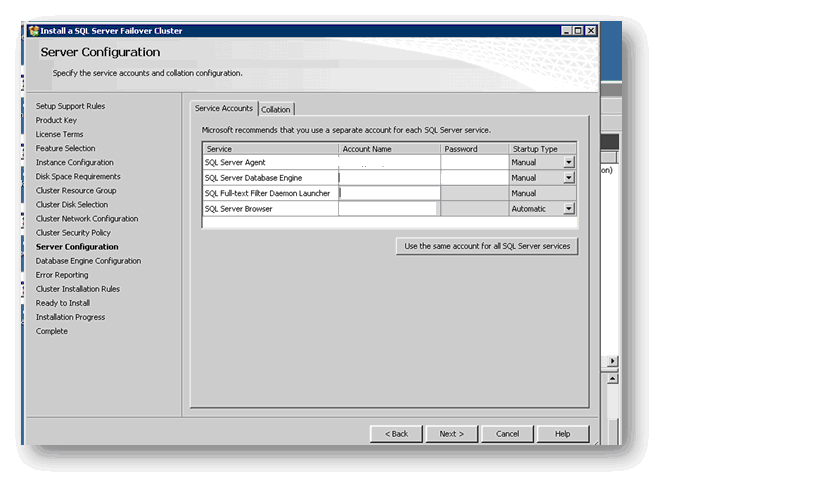
Use the Service account associated to the
SQL Instance.
Select your designated AD account for the
SQL Server Agent and Database Engine and enter the password. (Also make sure to
check the system collation is the correct one you want).
Select
the Authentication Mode type.
If needed, add your own account as SQL
Server Administrators by selecting Add Current User.

Check the Data Directories are pointing to
the correct disk drives.

Continue to Select Next until its starts
the actual Installation.
This completes the installation of SQL
Server on the first (preferred) Node.
Step
2
Add Second Node to Cluster
Log onto the Second Node and run the SQL installation program.
Select Add node to a SQL Server Failover
cluster.

Select your designated SQL Instance from
the drop down box.

Enter the Password for the Database Engine
and Server Agent account for its designated service account.

Select Next and continue until the Install
button and press Install.
This completes the setup of SQL Server 2008
R2 Instance installation on a Cluster 2008 R2.
Wednesday, 8 May 2013
Sql Server Perfmon Counters Quick Setup
The following steps allows you to quickly setup perfmon counters for Sql Server..
Create a text file called "sql2x51.txt" and copy\paste the following list of counters.
( Replace the Sql instance name with your Sql instance name.)
"\PhysicalDisk(*)\Avg. Disk sec/Read"
"\Memory\Available MBytes"
"\PhysicalDisk(*)\Avg. Disk sec/Write"
"\PhysicalDisk(*)\Disk Reads/sec"
"\PhysicalDisk(*)\Disk Writes/sec"
"\PhysicalDisk(*)\Disk Reads Bytes/sec"
"\PhysicalDisk(*)\Disk Write Bytes/sec"
"\PhysicalDisk(*)\Avg. Disk Bytes/Reads"
"\PhysicalDisk(*)\Avg. Disk Bytes/Write"
"\Process(sqlserver)\IO Data Operations/sec"
"\Process(sqlserver)\Thread Count"
"\Process(*)\% Processor Time"
"\Processor(*)\% Privileged Time"
"\Processor(*)\% Processor Time"
"\Processor(_Total)\% Privileged Time"
"\Processor(_Total)\% Processor Time"
"\System\Context Switches/sec"
"\mssql$MySqlInstance:Access Methods\Page Splits/sec"
"\mssql$MySqlInstance:Buffer Manager\Buffer cache hit ratio"
"\mssql$MySqlInstance:Buffer Manager\Checkpoint pages/sec"
"\mssql$MySqlInstance:Buffer Manager\Lazy writes/sec"
"\mssql$MySqlInstance:Buffer Manager\Page life expectancy"
"\mssql$MySqlInstance:Buffer Manager\Page reads/sec"
"\mssql$MySqlInstance:Buffer Manager\Page writes/sec"
"\mssql$MySqlInstance:General Statistics\User Connections"
"\mssql$MySqlInstance:Locks(_Total)\Lock Requests/sec"
"\mssql$MySqlInstance:Locks(_Total)\Lock Timeouts (timeout > 0)/sec"
"\mssql$MySqlInstance:Locks(_Total)\Lock Wait Time (ms)"
"\mssql$MySqlInstance:Locks(_Total)\Lock Waits/sec"
"\mssql$MySqlInstance:Locks(_Total)\Number of Deadlocks/sec"
"\mssql$MySqlInstance:Memory Manager\Target Server Memory (KB)"
"\mssql$MySqlInstance:Memory Manager\Total Server Memory (KB)"
"\mssql$MySqlInstance:Memory Manager\Memory Grants Pending"
"\mssql$MySqlInstance:SQL Statistics\Batch Requests/sec"
"\mssql$MySqlInstance:SQL Statistics\SQL Compilations/sec"
"\mssql$MySqlInstance:SQL Statistics\SQL Re-Compilations/sec"
Place the text file in the directory c:\temp or a directory of your preference.
Now run the following command from the command console.
logman create counter SQLBASELINEGG -f bincirc -max 500 --v -o "c:\temp\SQLout" -cf "c:\temp\sql2x51.txt"
You now have setup perfmon counters for your Sql Instance.
Open up perfmon and you will see a new User Defined set called SQLBASELINEGG.
Tuesday, 7 May 2013
DB2 script to Remotely execute SSIS Packages
In preparation to allow DB2 job to remotely execute SSIS packages several configurations need to be put in place mostly on Windows side.
1.
Create a .BAT file on the Windows servers and apply the following code. (Include the disk letter)
Driver Letter:Call osql.exe -Q"execute msdb.dbo.sp_start_job [My SQL Agent Job]"
-S MySQLServer -U My SQL account -P My Password
2.
Create a Windows account that has execute permissions to the .BAT file.
3.
DB2 command to remotely execute the SSIS Package.
RUNRMTCMD CMD('I:\SSISJobs\ExecuteMySQLJob.BAT') +
RMTLOCNAME('111.111.111.111' *IP) +
RMTUSER('MyWindowsUser') RMTPWD('password') +
CCSID(1252)
You will need to include the full path of the Batch file, IP address of the windows server, Windows user account and password.
There are several other ISeries DB2 commands that can be used as an alternative to RUNRMTCMD
but this is sufficient to handle the task.
4.
Install the following IBM ISeries Client service. This needs to be enabled on the Windows Server.

5.
Allow port 512 to be opened on the Windows server firewall.
Friday, 3 May 2013
Alter multiple Columns data types
This script was used in a staging environment to change all decimal and char columns to float and varchars.
Instructions are:
- Run the script in SSMS.
- Copy and paste the results in a new query pane and execute..
Wednesday, 20 March 2013
SSIS Windows Service Failing
I encountered this issue with the SSIS windows service failing.
It was generating these errors at each attempt to run the service.
The SQL Server Integration Services service failed to start due to the following error:
The service did not respond to the start or control request in a timely fashion.
....
A timeout was reached (30000 milliseconds) while waiting for the SQL Server Integration Services service to connect.
Log Name: Application
Source: Microsoft-Windows-User Profiles Service
Event ID: 1530
Task Category: None
Level: Warning
Keywords: Classic
Description:
Windows detected your registry file is still in use by other applications or services. The file will be unloaded now. The applications or services that hold your registry file may not function properly afterwards.
There were several possible reasons suggested here
http://connect.microsoft.com/SQLServer/feedback/details/125768/sql-server-integration-services-service-failed-to-start-after-installing-sp1
but for this case it was resolved by adding this new entry in the config files mentioned here http://support.microsoft.com/kb/918644 Method 1
<runtime>
<generatePublisherEvidence enabled="false"/>
</runtime>
C:\Program Files\Microsoft SQL Server\90\DTS\Binn\
msdtssrvr.exe.config
DTExec.exe.config
Dtshost.exe.config
DtsDebugHost.exe.config
DTUtil.exe.config
Subscribe to:
Posts (Atom)